Even the best IPTV setup can hit the occasional snag — a channel freezes, the guide goes blank, or playback stutters during the big game. The good news is that the vast majority of IPTV problems have simple, fast fixes. This guide walks through the most common issues and exactly how to solve them, starting with the easiest steps.
Before diving into specifics, remember the golden rule of IPTV troubleshooting: most problems come down to your internet connection. Start there, and you'll resolve a surprising number of issues immediately.
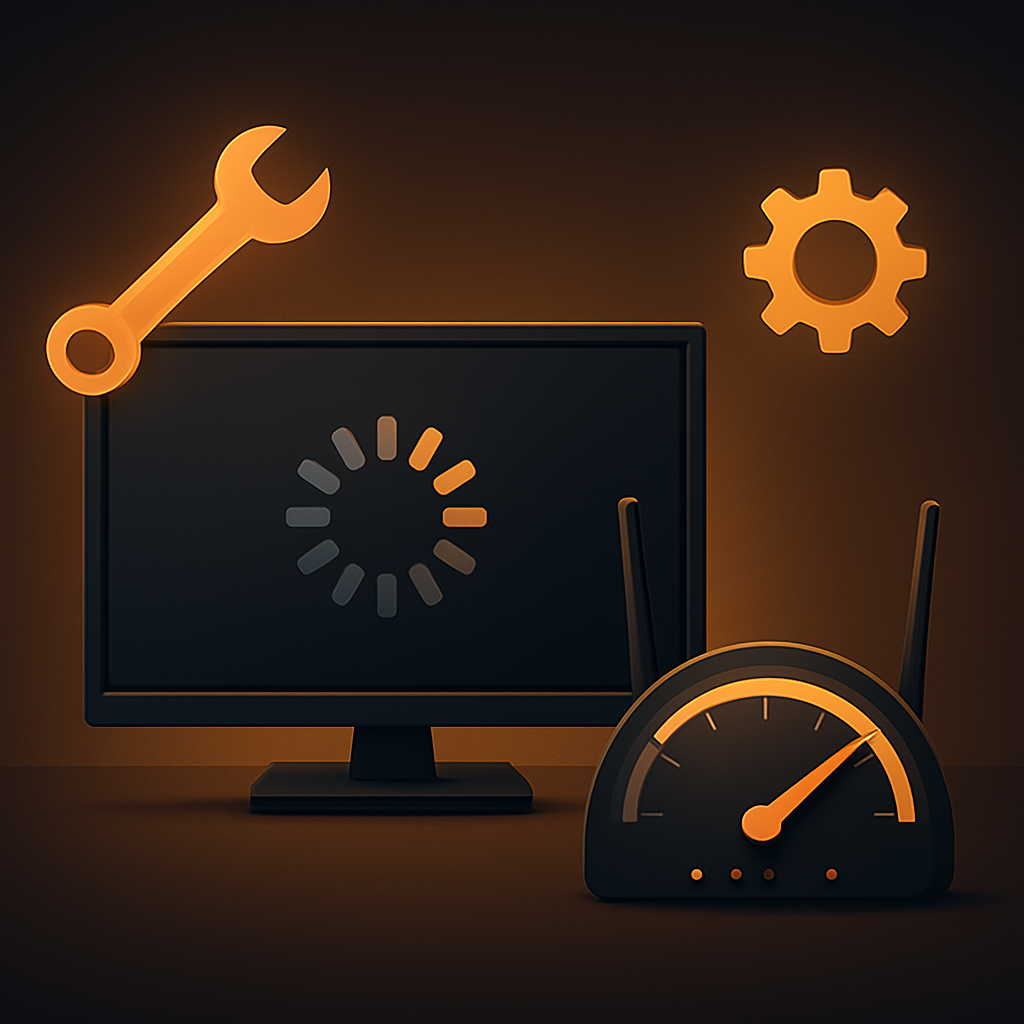
Problem: Constant Buffering
Buffering is the most common complaint, and it's almost always a network issue rather than a problem with the IPTV service itself. When your device can't download the stream fast enough, it pauses to catch up.
- 1Run a speed test — you want at least 15 Mbps for HD and 25 Mbps+ for 4K.
- 2Switch from Wi-Fi to a wired ethernet connection if possible.
- 3Move your router closer to your device or reduce the number of devices using the network.
- 4Restart your router and your streaming device to clear temporary congestion.
- 5Lower the stream quality temporarily if your connection is limited.
Buffering Only at Peak Times?
If buffering happens only during busy evening hours, it could be your internet provider throttling traffic, or a low-quality IPTV service with oversold servers. A premium provider with load-balanced servers and anti-freeze technology eliminates the second cause entirely.
Tired of buffering?
Telly4K's anti-freeze technology and load-balanced servers keep streams smooth even at peak times. Explore our plans for a genuinely stable experience.
Problem: Frozen or Black Channels
Sometimes a specific channel freezes or shows a black screen while others work fine. This usually points to a temporary server issue on that channel or an app glitch.
- Exit and re-enter the channel, or switch away and back.
- Restart the IPTV app completely.
- Refresh or reload your playlist within the app.
- If only one channel is affected for an extended time, contact your provider's support.
Problem: Missing or Wrong Program Guide (EPG)
The electronic program guide shows what's on now and next. If it's blank or showing incorrect listings, the fix is usually quick.
- 1Open your app's settings and manually refresh or re-download the EPG.
- 2Confirm your device's date, time, and time zone are set correctly.
- 3Check that your app is configured to use your provider's EPG source.
- 4Update the app to the latest version, then reload the guide.
Problem: Login or Activation Errors
If you can't log in or your channels won't load at all, the issue is often with your credentials or subscription status rather than the app.
- Double-check your username, password, or M3U URL for typos.
- Confirm your subscription is active and hasn't expired.
- Make sure you haven't exceeded your plan's number of simultaneous connections.
- Contact support to verify your account if everything looks correct.
Problem: Audio and Video Out of Sync
Occasionally audio drifts out of sync with the picture. This is usually a buffering side-effect or an app setting. Restart the channel, restart the app, and check for any audio delay or sync option in the player's settings. Updating the app often resolves persistent sync issues.
When to Contact Your Provider
If you've checked your internet, restarted your devices, and confirmed your subscription is active but problems persist, it's time to reach out to support. A quality provider offers 24/7 help and can quickly tell you whether an issue is on their end. For tips on setting things up correctly from the start, revisit our Smart TV setup guide.
Final Thoughts
Most IPTV problems are minor and quick to fix — and the majority trace back to your internet connection or a simple app refresh. Work through these steps from top to bottom and you'll resolve the overwhelming majority of issues on your own. And when you choose a premium provider with strong infrastructure and support, problems become rare in the first place.
Stream without the headaches
Telly4K pairs rock-solid infrastructure with 24/7 support so issues are rare and quickly resolved. Compare plans and enjoy stress-free streaming.
Frequently Asked Questions
Buffering is almost always caused by a slow or unstable internet connection. Run a speed test, switch to a wired connection, restart your router, and ensure you have at least 25 Mbps for 4K streaming.
Exit and re-enter the channel, restart the app, and refresh your playlist. If a single channel stays frozen for a long time, contact your provider's support.
Refresh or re-download the EPG in your app settings, confirm your device's date and time are correct, and make sure the app is using your provider's EPG source.
Check your credentials for typos, confirm your subscription is active, and ensure you haven't exceeded your plan's allowed connections. Contact support if the issue persists.
Restart the channel and the app, check for an audio delay setting in your player, and update the app to the latest version, which often resolves sync issues.
Reach out to support if problems persist after checking your internet, restarting your devices, and confirming your subscription is active. A quality provider offers 24/7 help.